- Home
Platform Tips & Tricks
Access the Frequently Asked Questions HERE
Looking for something specific? Click the links below to jump to your tip of choice:
How to Log In How to Access the Schedule
How to Connect with Attendees
How to Perform a System Check
HOW TO LOG IN
To access LM2024 Online, follow these steps:
1. Click
here or enter this address into your browser:
https://www.lmconference.org/login.asp .
2. Sign in to the platform using the same
email address you registered with and your individual
Registrant ID. You should have received your Registrant ID in your email. If you need assistance with your login, please contact the Registration Department at
ACLMregistration@discoversb.com.
3. You must accept the terms and privacy policy to continue.
4. Set up your profile so you can start connecting with other attendees, speakers, and exhibitors.
5. Get familiar with the platform.
6. Create your custom schedule, browse the exhibitor list, view posters, and take advantage of many other conference features.

HOW TO ACCESS THE SCHEDULE
The Full Schedule can be accessed by clicking
Agenda in the left navigation menu of the website.
All concurrent and keynote sessions will be recorded and available for viewing by all registered attendees soon after the conference concludes.
Pre- and post-conference workshops will not be recorded. The recorded content will be made available for one year following the LM2024 conference.

Make sure to star the sessions you want to attend to save them to your personalized schedule.
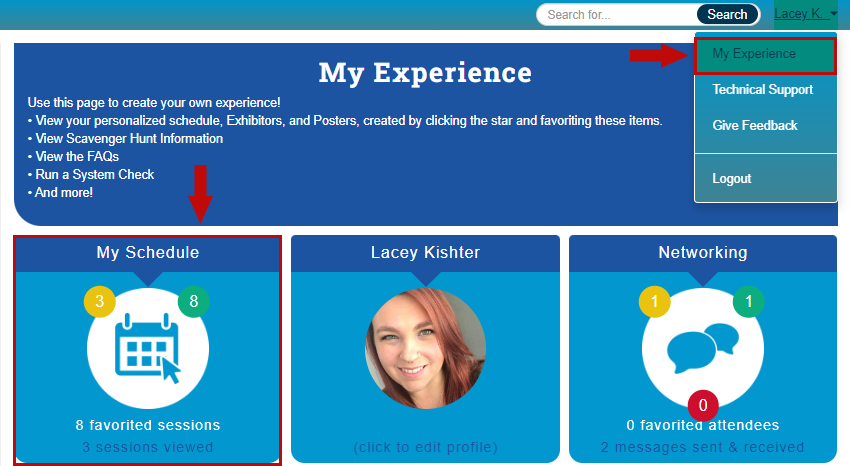
To access your personalized schedule:
- Click the arrow by your name in the top right corner of the screen
- Click 'My Experience.'
- Click the 'My Schedule' tile in the top left corner.
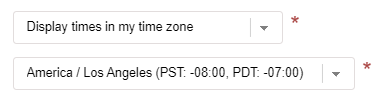
 Want to change your timezone?
Click on "My Profile" on the My Experience page and change you time zone as desired. You Can choose the event time zone (Eastern Time) or your own time zone.

HOW TO CONNECT WITH ATTENDEES
Finding and connecting with fellow attendees is easy during LM2024!
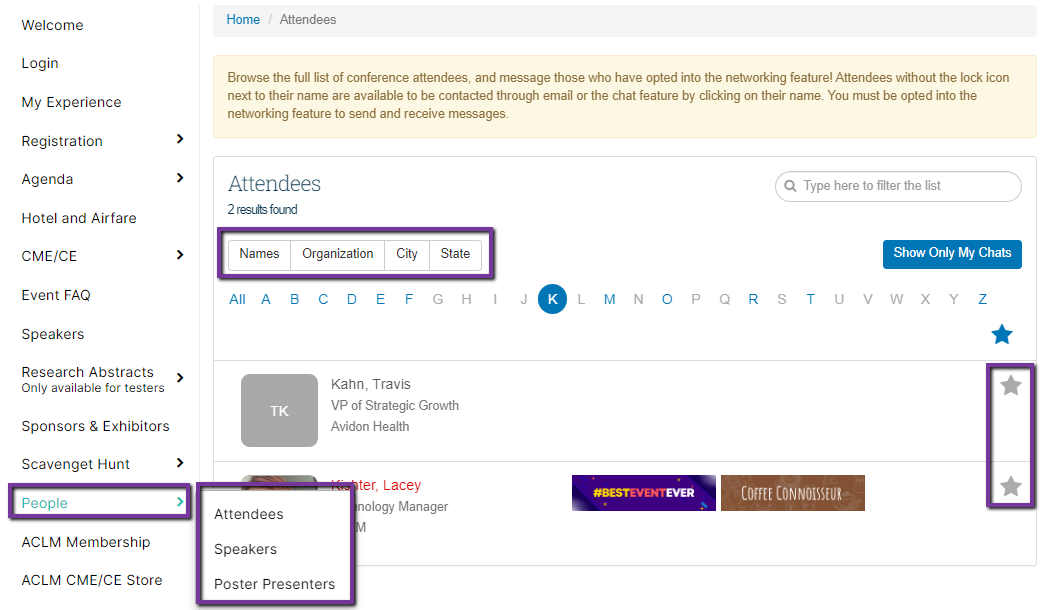
To find conference attendees:1. Click 'Connect' in the left-hand navigation menu to browse the full list of conference attendees who chose to share their information for networking.
2. Filter attendees by their name, organization, city, or state.
3. To favorite an attendee, click the star to the right of their name. You can filter your favorites by clicking the blue star at the top of the user list.
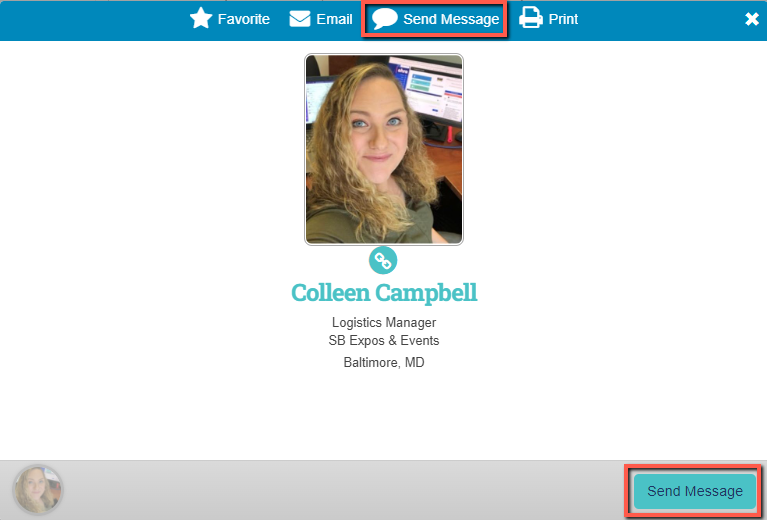
4. Click an attendee’s name to view their profile. Here you can see any available information the attendee has chosen to share.
5. At the top of the profile, you can favorite, email, chat or print their profile.
 To connect with a conference attendee by sending a message:
1. Click 'Send Message' at the top of the profile to send a private message to the attendee.
2. An email will be sent to you when a new conversation has been initiated.
3. You can filter the attendees who you have a chat with by clicking “Show only my chats” in the upper right corner of the attendee list.
HOW TO CHECK YOUR DEVICE
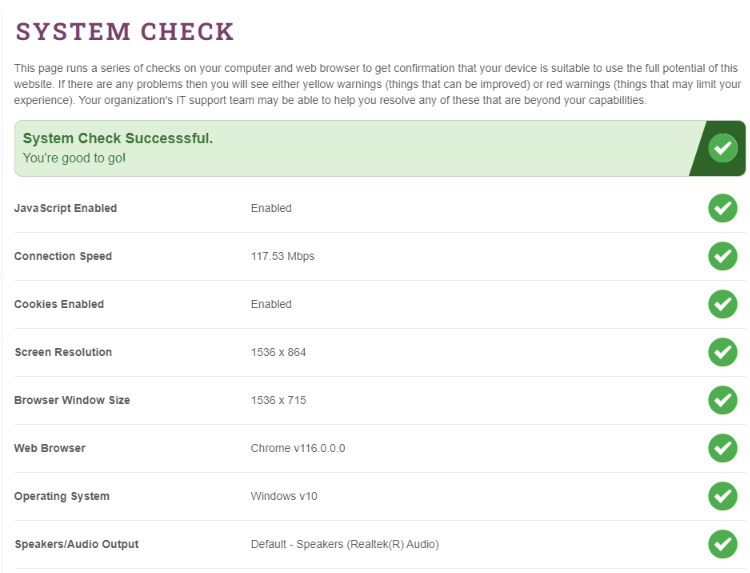
Testing your device is a great way to ensure you are ready for October 27th! The platform provides a System Check tool that runs a series of checks on your computer and web browsers to get confirmation that your device is suitable to use the full potential of the platform. If there are any problems, then you will see either yellow warnings (things that can be improved) or red warnings (things that may limit your experience). Your organization's IT support team may be able to help you resolve any of these issues that are beyond your capabilities.
Run your System Check now!The platform does not recommend accessing the conference while on your VPN. You may need to reach out to your IT administrator to bypass your organization’s firewall.